AuctionAI user guide
AuctionAI lets you run auctions inside your Shopify store, customize how buyers bid, and track winning orders. Open Kernvel AI Auction in Shopify admin. This guide describes the features available in the app; some require a paid plan or separate setup.
Set up your storefront
- Follow the dashboard setup checklist and enable the app embed in your published theme.
- Create or select an Auctions page and a My Bids page. Add the matching AuctionAI blocks in the theme editor, and save/publish your changes.
- Add navigation links so buyers can find those pages. Refresh the setup checklist to check the published pages.
- Import products, create a small test auction in your development store, and preview the product and collection pages on mobile and desktop.
If you already use a custom My Bids page, save its URL under Settings → General → My Bids page, then refresh setup. Combined checkout needs the app to recognize that published page; a page with a similar title alone is not enough.
The theme editor offers product auction, auction listing, All Auctions, My Bids, bid-pack and collection badge surfaces. Add the surfaces you need. The app embed supports storefront integration, but a block still needs to be placed where your chosen layout requires it. Online Store 2.0 themes support app blocks; older themes can need a different setup. Preview your actual theme before publishing.
Choose a plan
Prices below are in USD. Annual prices are the full yearly subscription charge. Active-auction caps limit how many auctions can run at once.
| Plan | Monthly | Yearly | Active auctions | AI generations/month | Campaigns/month | Marketing sends/month | Providers | Automation rules |
|---|---|---|---|---|---|---|---|---|
| Free | $0 | $0 | 1 | 2 | 0 | 0 | 0 | 0 |
| Starter | $6.99 | $69.90 | 10 | 10 | 3 | 500 | 1 | 0 |
| Pro | $14.99 | $149.90 | 100 | 100 | 20 | 5,000 | 1 | 3 |
| Enterprise | $39.99 | $399.90 | 1,000 | 500 | 50 | 25,000 | 2 | 10 |
All plans include auction management, pricing hints and fraud-detection availability. Starter adds timing and content tools. Pro and Enterprise include advanced AI insights, the auction generator and optional auto-pay. AI suggestions can be estimates or fallbacks; they do not guarantee a sale price, prevent every fraudulent bid or move your saved deadline automatically.
Maximum Active Auctions is a saved preference; current enforcement uses your subscription plan cap. Changing that preference does not increase your plan allowance. Billing shows your current usage and upgrade choices.
Create and schedule an auction
Open Auctions → Create auction. Select an imported product and variant where required, set the title, auction type, prices, bid increment and schedule, then review the summary before creating it. If a product is missing from the selector, import it first or use the supported CSV product-handle option.
- Starting price is the first bid level; the first eligible bid can start there.
- Reserve is the minimum winning price. An auction can finish without a winner if the reserve is not met.
- Buy Now, when enabled and eligible, offers an immediate purchase at its fixed amount. It must satisfy the auction's price rules.
- End time is a saved deadline. Choose it deliberately; a timing suggestion does not continually reschedule the auction.
- Scheduled start starts the auction later. Drafts need to be started or scheduled if automatic start is disabled.
Set your store timezone correctly and check displayed times before saving/importing. Buyers see countdowns, but the server decides whether a bid arrived before the deadline.
Auction types
| Type | How buyers participate |
|---|---|
| Standard | Increasing bids compete until the deadline; the highest eligible bid wins if the reserve is met. |
| Proxy | Buyers enter a maximum; bidding advances automatically only as competition requires, up to that maximum. |
| Popcorn / anti-snipe | Eligible late bids extend the end time according to the configured trigger and extension windows. |
| Penny | Buyers spend bid credits in fixed increments; the configured timer can reset after bids. Configure bid packs and explain credit costs clearly. |
| Dutch | Price decreases according to the configured schedule until a buyer accepts. Paid-plan target auto-buy can let a buyer commit to a target price. |
| Sealed | Bid amounts are hidden from other shoppers while bidding is open. The highest eligible bid wins subject to the reserve. Do not assume a multi-quantity auction creates separate invoices for multiple winners. |
Proxy and auto-bid visibility
On the auction detail page, merchants can review automatic/proxy bids and bidder maximum amounts. A logged-in shopper sees their own maximum and can raise it; other shoppers' proxy maxima are not publicly shown.
Dutch target auto-buy is a separate feature. Settings → Widget Display → Show highest reserve can reveal the highest Dutch buyer target when enabled. It is off by default. Turn it on only if you intend to show that demand signal; it is not a switch that reveals everyone's ordinary proxy maximum.
Change several auctions together
Use the Auctions list to search/filter first. Select individual rows, or explicitly choose all matching results where offered. Check the selected scope before opening a bulk action.
Update supports shared field changes and three schedule choices:
- Exact time: use the same specified time for the selected auctions.
- Shift by: move existing times forward or backward by the chosen days, hours and minutes, preserving their relative spacing.
- Stagger: choose a first end time, interval and order so lots finish one after another.
Price changes can be restricted after bidding starts. Earlier end times need the configured notice period (12 hours by default); inside that window, live auctions can only be extended. Dutch and penny auctions remain extend-only. Eligible bidders receive a schedule-change email digest subject to their preferences. Review per-auction success/skipped/error results: one rejected row does not mean the whole selection changed.
Bulk Start, End and Delete have their own eligibility checks. Ending an auction can select a winner and begin invoicing; read the confirmation before continuing. Restart, where available, restarts the existing auction; it is not a promise of a new relisted auction with separate history.
Import, update and export CSV
Open Auctions → Import and choose the appropriate mode. Product import and auction import are different operations.
Both CSV tabs show a Dates and times guide. Times use the store time zone shown there, not your computer's time zone, unless the cell includes an offset. For example, 2026-11-20 15:30 means 3:30 PM in your store's zone, while 2026-11-20T15:30:00Z means 3:30 PM UTC.
Times are 24-hour unless AM/PM is written: 03:55 is 3:55 AM and 15:55 is 3:55 PM. You can write 3:55 PM or 3:55PM, in any case. Use a four-digit year; month, day and hour can each be one or two digits. Seconds are optional, and a space or T can separate the date and time. English month names are accepted.
When the year comes last, slashes are month first (02/11/2026 is 11 February), while dashes and dots are day first (02-11-2026 is 2 November). If day and month could be swapped, the row shows a warning to confirm their order in both tabs. Review the Validated times table before creating anything, or the update dry run before applying changes.
Read as uses your store's time zone unless UTC is shown. The app shows the actual store zone beside this table. Dates without an offset also work without a time.
| Format | Example | Read as |
|---|---|---|
| Year first (recommended), 24-hour | 2026-11-20 15:30 |
20 November 2026, 3:30 PM |
| Year first with slashes, seconds | 2026/11/2 3:55:10 |
2 November 2026, 3:55:10 AM |
| AM/PM (space optional) | 2026-11-20 3:30PM |
20 November 2026, 3:30 PM |
| Day first with dashes | 02-11-2026 03:55 |
2 November 2026, 3:55 AM |
| Day first with dots | 20.11.2026 15:30 |
20 November 2026, 3:30 PM |
| US month first with slashes | 11/20/2026 3:30 PM |
20 November 2026, 3:30 PM |
| Short month name | Nov 20, 2026 3:30 PM |
20 November 2026, 3:30 PM |
| Full month name | November 20, 2026 15:30 |
20 November 2026, 3:30 PM |
| Day then month name | 20 Nov 2026 15:30 |
20 November 2026, 3:30 PM |
| Excel day-month name | 20-Nov-2026 15:30 |
20 November 2026, 3:30 PM |
| Month name with dashes | Nov-20-2026 15:30 |
20 November 2026, 3:30 PM |
| Date only (midnight) | 2026-11-20 |
20 November 2026, 12:00 AM |
| Exact time with offset | 2026-11-20T15:30:00+05:30 |
20 November 2026, 10:00 AM UTC |
| Exact time with Z (or z) | 2026-11-20T15:30:00Z |
20 November 2026, 3:30 PM UTC |
An end time must be after the start. In Create, a blank start means now. In Update, blank cells keep existing values. Date-only values mean midnight at the start of that day. Offsets and Z/z give an exact instant. Daylight saving gaps fail the row; repeated times use the first occurrence with a warning. Two-digit years, impossible dates such as 31-02-2026, and times such as 15:59 PM are rejected. 20/11/2026 is rejected because slashes are month first; use 20-11-2026 or 2026-11-20 instead.
Create new auctions
Use the app's current sample CSV, which includes a standard, popcorn and Dutch row with scheduled start and end times. Its dates use next calendar year so they stay usable; replace the handles with your products. Each row is on its own line; scroll across the example to see every column. Product identity can use product_handle (also accepted as handle/Handle) or the supported product identifier. A handle is the portion of a Shopify product URL after /products/; the app also accepts a supported full product URL. It is not an auction ID. Review variant and type-specific requirements, especially Dutch pricing/timing fields.
Create mode creates new auctions; uploading the same file again is not an update. Creation still obeys the plan cap and per-row validation. Headers accept spaces and any case: Product id, product_id and Product ID work, as does Scheduled End. Invalid products and overlapping auctions fail the row; blank rows are skipped. Track the import job and review failed rows before retrying.
Leave popcorn trigger and extension values blank to use each saved store setting. If you have never saved those settings, new auctions use the same 5-minute trigger and 2-minute extension shown in Settings. Explicit auction values take precedence. Existing auctions keep their stored timing, and relisted auctions copy the original auction's values.
Prices use plain numbers such as 50.00, with no currency symbols or commas. Whole-number columns use values such as 48. Do not write $50 or 1,000. Types accept standard, popcorn, proxy, penny, dutch and sealed in any case. Dutch may leave starting_price blank and uses dutch_starting_price instead; dutch_decrement_amount and dutch_decrement_interval_minutes are required.
Create also accepts payment_due_hours (e.g. 48). A blank cell uses your saved store Payment window; if you have never set one, it uses 48 hours. An explicit value takes precedence and must be a whole number from 1 to 720 hours. This is captured when the auction is created: changing Settings later does not change existing auctions or payment deadlines. Create also accepts proxy_bidding_enabled (true/false for standard, proxy or popcorn), popcorn_enabled (true/false), and max_extensions (e.g. 10). A blank popcorn_enabled enables extensions for popcorn rows only; blank max_extensions defaults to 10. Existing plan/type gates still apply.
Import from a collection
Select a Shopify collection and review the shared auction settings. Payment window is pre-filled from your saved store setting; you can change it for this import or leave it blank to use the store setting at creation (48 hours if unset). The range is 1–720 whole hours; the Days control converts to hours. A blank collection reserve uses the 80% default, while a blank CSV reserve_price creates no reserve.
Update existing auctions
- Export the auctions you want to change.
- Keep the id column from that export: this identifies the existing auction. A product handle, SKU or an
auction_idcolumn is not a substitute foridin this mode. - Edit supported fields. Blank values generally leave a field unchanged; use the documented
NULLvalue for clearing reserve where supported. - Upload in Update existing auctions mode and run the dry run.
- Review each proposed change, skip reason and error. Apply that reviewed preview only if it matches your intent.
Supported update columns are scheduled_start/start_time/start, scheduled_end/end_time/end, starting_price, reserve_price, buy_now_price, min_bid_increment, payment_due_hours (e.g. 48), proxy_bidding_enabled and popcorn_enabled (true/false), popcorn_threshold_minutes (e.g. 5), popcorn_extension_minutes (e.g. 2), and max_extensions (e.g. 10). Other export columns are ignored. Completely empty lines are ignored; an empty row of cells is rejected because it has no id.
A preview can expire or become stale if the file or auction changes. Run a new dry run instead of trying to reuse it. Live-auction bid/price/deadline rules still apply. Exported read-only columns are not permission to overwrite bids, winners or payment status.
Export
Choose the selected or filtered scope and export. Keep the identity/timezone columns for later updates. Do not re-import an export through Create mode when your intent is to edit existing rows.
Design: templates, Match theme and Dark Style
Open Settings → Design. If you are using the older storefront, use the runtime control to preview and switch to the current design experience. Existing stores can retain their older selection; switching does not cancel bids or change payments.
- Browse product-widget templates and preview the ones you want to try.
- Match theme keeps your existing design choices while using the theme-aware approach. A named template supplies its own starting arrangement; review colors and blocks after choosing one.
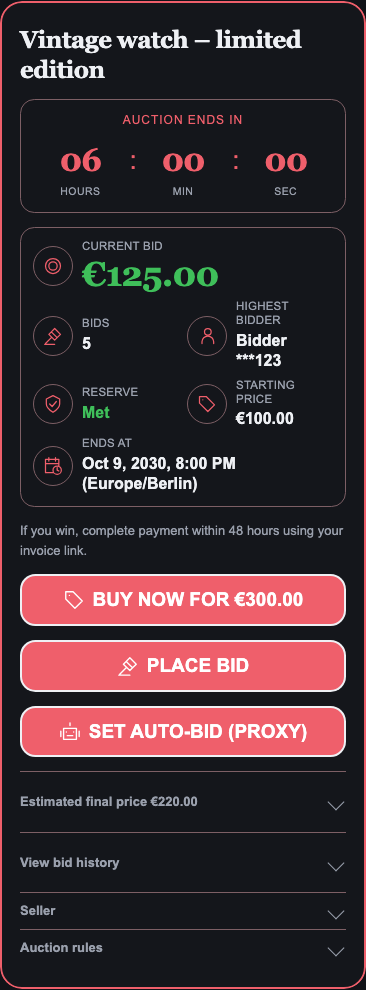
- Use Dark Style where offered for a dark starting appearance. Preview against the actual background of your published theme; a dark design is not a guarantee that every third-party theme style will match.
- Adjust blocks, order, alignment, spacing, typography, button style and countdown presentation. Use the available color controls to refine contrast.
- Save, then check a real product page at narrow and wide sizes.
Template previews use example auction data. They show appearance, not a live bid or final winning price. Settings such as showing bid history, reserve status and predictions affect presentation; they do not change auction rules.
Example of Dark Style rendered with sample auction data in a test theme:
Cards, image badges and tag pills
Use the card-design controls to choose a card template and arrange its blocks. Listing and other surfaces can follow the product widget's design; review their own previews when changing that preference.
Under Settings → Storefront, collection-card injection has a master enable switch. Automatic tries to find product cards in supported themes. Manual supplies a snippet for precise placement; theme customization may be needed if automatic detection cannot find your cards.
You can position the image badge and the information strip, choose which timer/price/bid details appear, and select a two-row layout when a card is too narrow. Optional tag pills show supported product tags on cards; they are off by default. Shopify auction-status tags are a separate optional setting that can help build automated collections.
Quick Bid is off by default. When enabled, eligible signed-in buyers can bid from collection strips and auction listings. Registration, membership and specialized auction cases open the product page to complete their required steps.
Turning collection injection off removes those injected badges. It does not remove separately placed listing blocks or disable product-page bidding.
All Auctions page: Recently Ended tab
In the theme editor → All Auctions block, the current storefront widget offers three layout and browsing options:
- Show type filter is on by default. Turn it off to hide Type while keeping Sort. The existing Show type filter & sort setting still hides both controls when switched off.
- Random order by default is off by default. Turn it on to add and select Random on Active. Each page view gets a fresh order; refreshes and Previous/Next within that view keep the same ordering. Upcoming uses Starting Soon, and Recently Ended keeps its normal order. Shoppers can choose another sort.
- Full width is off by default. Turn it on to remove the app’s 1200 px cap while keeping side padding. Your theme’s own container may still limit the available width.
These options leave existing blocks as they look today until you change them. The classic storefront widget keeps its existing presentation. Rename Random under Widget text and languages → All Auctions if needed.
The All Auctions page has Active, Upcoming and Recently Ended tabs. Recently Ended lists auctions that finished with a winner (ended or sold), the most recently finished first; auctions with no winner and cancelled auctions are not listed. Each auction is its own card, so a product auctioned several times appears once per auction.
Under Settings → Storefront → All Auctions page you can limit the tab to auctions that finished in the last 7, 14, 21 or 30 days (the default is all ended auctions), or turn Show the Recently Ended tab off. When it is off, ended auctions are no longer listed on that page; the current storefront widget removes the tab, while the classic widget keeps the tab but shows it empty. These options do not change auction results on product pages or how winners pay.
Widget text and languages
Open Widget text to edit storefront wording. Built-in storefront copy supports English, Spanish, French, German, Italian, Portuguese, Dutch, Japanese, Simplified Chinese, Korean, Arabic, Hindi, Russian, Turkish, Polish, Swedish and Danish. Arabic storefront copy supports right-to-left presentation.
Choose whether wording follows the app language, storefront language or a fixed locale where available. Preserve required placeholders. Optional variables and line breaks depend on the selected label; the editor shows the allowed choices. Preview before saving. Text edits change presentation, never bid amounts, deadlines, eligibility or payment rules.
Cart buttons and the checkout guard
Hiding Add to cart is a storefront display choice. It does not by itself protect every route into Shopify checkout.
The optional checkout guard adds a Shopify checkout validation rule. It is off by default, requires the requested permissions, and is enabled through its dedicated control. It can reject ordinary purchases of active/scheduled auction products according to your saved protection settings. Eligible outstanding winner invoices are recognized separately, including when the same product is relisted.
Protection relies on synchronized product/invoice information. Missing or stale information, unsupported checkout surfaces or service outages can affect it. It does not authenticate the buyer or replace payment reconciliation. Ended-product cart hiding remains a display choice. Test your actual store's ordinary checkout and winner checkout after setup; contact support if a valid invoice is blocked.
My Bids and combined checkout
On the v2 widget, All bids opens first and shows the buyer’s own activity. A saved custom name for the old All tab is kept. Browse auctions lists live and upcoming auctions on the same page, with compact rows, sorting and Previous/Next paging. Winning and Outbid badges use the signed-in buyer’s bids; the bidder-status visibility setting also applies here.
Eligible ordinary lots open the existing bid popup, even if collection quick bid is off. Dutch, sealed, penny, registration, member-only, other-currency and upcoming lots open the product page. Browse starts loading when opened, refreshes every 30 seconds while visible, and updates My Bids after a successful bid. Opening a product and pressing Back restores Browse and its Live now or Upcoming pill.
Under Settings → Storefront → My Bids page, turn Show the Browse auctions tab off to hide it for the store. It is on by default for v2. A bidder can also use × beside the tab to hide it in their browser, then Undo or + Browse auctions to restore it. This choice is separate for each store and customer on that browser. The classic widget keeps its current page and requires v2 to use Browse.
Buyers sign in to your storefront and open My Bids to view their own auction activity, won/lost states and eligible payment actions. Bid Now opens the relevant bidding flow while an auction is open.
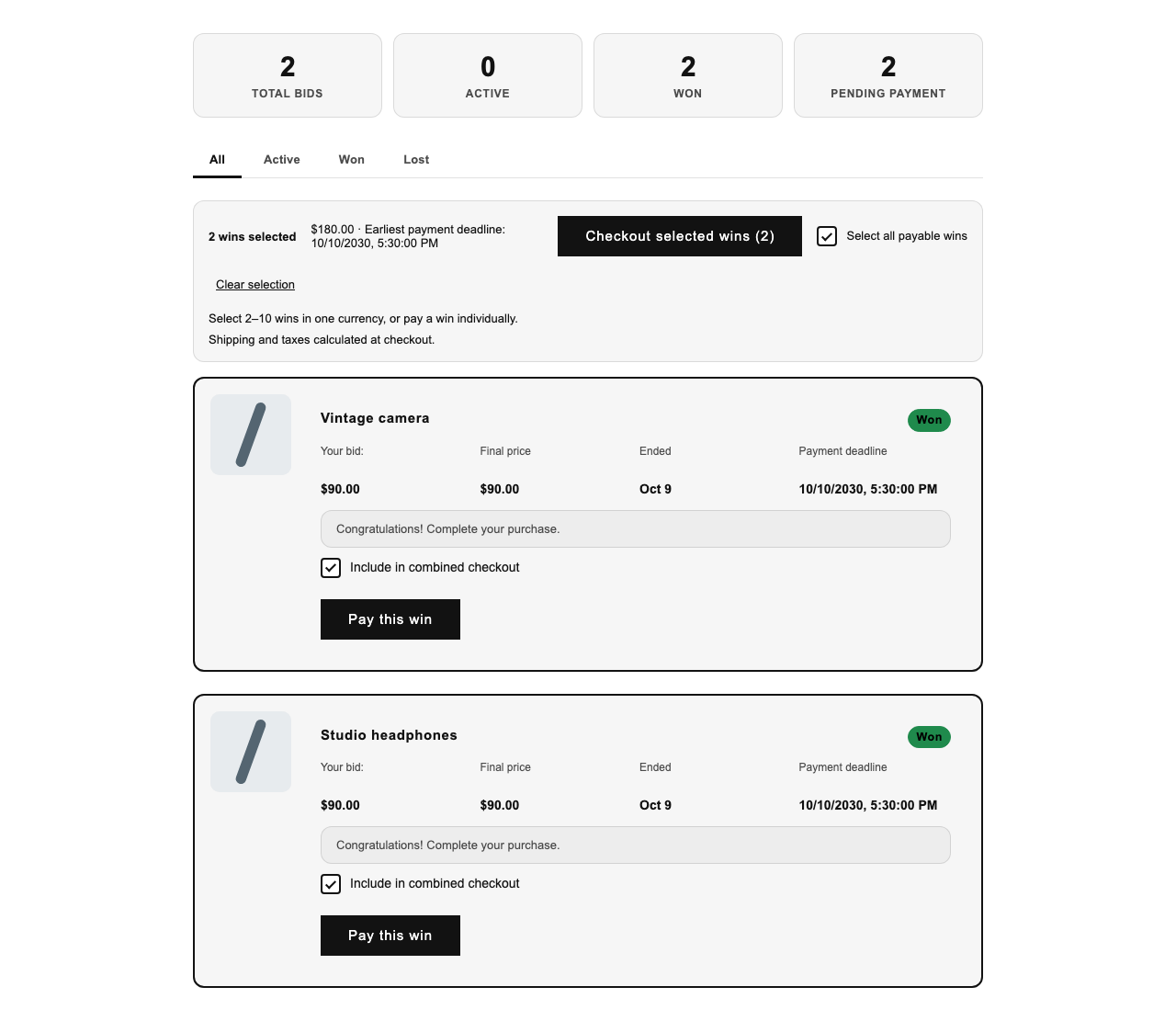
For compatible unpaid wins, buyers can explicitly select the items they want to pay for together. The page shows a shared checkout/deadline before continuing to Shopify checkout. Selecting one win can use its individual invoice; selecting several eligible wins can create a combined invoice.
Only eligible wins can combine. Currency/customer/payment state, existing invoice/group state and registration or auto-pay requirements can prevent grouping. Review or processing states may need merchant help. Eligible overdue manual wins may be combined again with a new shared window; do not promise that every expired payment link can be reused.
A buyer can combine 2 to 50 wins in one checkout. A win whose invoice predates the app's signed checkout protection must be paid on its own. If a large combined checkout is still being prepared, My Bids says so and the buyer can try again after a moment.
Once a combined invoice replaces individual invoices, buyers should use the current checkout link shown on My Bids. Do not distribute old payment links as an alternative.
Example with two selected wins and sample prices/deadlines in a test store layout:
Winners and the Unpaid flow
After a successful close, the app prepares the winner's payment path. Manual-payment winners use a Shopify draft-order checkout link; successful auto-pay winners follow their saved-card flow. A winner email can be delayed if the app cannot yet confirm a usable payment link or recipient.
Open Auctions → Unpaid to review outstanding wins. Check the winner, individual or combined obligation, due time, payment/review status and available next action. Open the auction detail page for the full record.
- Send payment reminder is a manual action for eligible unpaid winners with a confirmed payment link. Payment processing states may refuse it.
- Refresh/recover draft order is an operator recovery action when a payment link is missing or needs regeneration. First check whether an existing invoice/order has already been paid.
- Needs review on a combined checkout means a payment arrived that the app could not settle on its own, for example the buyer paid an individual invoice while it was being combined. Open the auction detail page, check the Shopify order it names, then use Recheck Shopify order, Accept Shopify order as payment or Release group. If the same win was paid twice, both orders are listed, accepting is blocked and nothing is refunded automatically. Refund or cancel the duplicate order in Shopify first. Then, on the auction detail page, use Resolve double payment: choose the order that pays for the win and confirm. The win is marked paid once, on that order. If you refunded both orders, use Clear double payment instead; the win goes back to unpaid. The app re-reads both orders from Shopify before it changes anything, and it refuses while an order is only partly refunded. If you later refund or cancel the order you kept, the win is recorded as refunded automatically.
- Forfeit/offer to the next bidder, where available, is an explicit action with payment-safety checks. Review the confirmation and outcome; it is not an automatic promise for every unpaid manual invoice.
- Fulfil the order once Shopify confirms payment. Winning and paid are different states.
The store Payment window starts at 48 hours and can be configured from 1 to 720 hours. New CSV, collection and auto-generated auctions use that setting when no payment window is supplied. Explicit auction values and relisted copies retain their own window; existing auctions and payment deadlines do not change when you save Settings. The public API keeps its documented 48-hour default when omitted. Use the actual deadline on the auction or combined checkout when contacting a buyer. Saved payment preferences do not prove an email has been delivered; check the action's result.
Optional auto-pay and one-tap bidding
Auto-pay is available on Pro and Enterprise. Enabling the store setting only unlocks the per-auction option; it does not turn existing auctions into auto-pay auctions.
Per-auction registration
Enable automatic winner payment in the relevant Settings section, complete its readiness checks and opt in the intended auction. Buyers must complete the required registration/card authorization. Supported deferred-payment gateways are required; accelerated wallet registration such as Shop Pay, Apple Pay and Google Pay is unavailable for this flow. Check the readiness information for your store's gateway and checkout setup.
Choose pickup or the supported delivery charge and review tax settings. The buyer's registered fulfilment/charge agreement is not automatically re-quoted when you later change store settings. A completed registration is different from a confirmed winning charge; payment can remain processing or need attention.
One-tap bidding
One-tap bidding uses a reusable authorization through Kernvel GateIQ. Connect it, enable the store option, then opt in the relevant auction. Buyers authorize the supported saved-card arrangement and limit. If charging cannot complete, the app can fall back to a manual invoice. Review the actual payment state before sending a replacement link or requesting another payment.
Email notifications, templates and marketing
Seller Notifications controls bid/end alerts and optional bid digests. Customer Notifications controls outbid, winner, eligible reminder, ending-soon and now-live messages. Ending-soon mail targets watchers; it is not a promise that every bidder receives a message. The outbid cooldown preference is saved, but current delivery follows each outbid event.
Add an explicit HTTPS logo URL if you want it in supported customer email headers. A missing URL omits the logo; the app does not automatically fetch your Shopify brand logo. Configure your Reply-To address separately.
Email Templates lets you preview/edit the supported customer and seller templates. Preserve payment links, required variables and conditionals; use the locale selector to review localized customer content. AI generation consumes the applicable monthly quota. SMS is not available from these notification controls.
Email Marketing provides campaigns, audiences, provider connections and plan-limited automation. The admin supports connecting SendGrid and Klaviyo. Mailchimp, Omnisend, Brevo and ActiveCampaign are shown as Coming Soon. Use the provider's connection requirements and review delivery results. The app does not provide arbitrary merchant SMTP connections. Marketing opt-outs and transactional payment messages follow different rules.
Analytics, AI and integrations
Dashboard and Analytics show auction activity and revenue from the data available to the app. Advanced AI insights and generation tools depend on your plan and available history. Treat forecasts, confidence scores and proposed schedules as decision aids. Review generated descriptions, tags and email drafts before using them. Content generation keeps the existing plan access and monthly generation limits.
In Analytics, Custom or Change dates opens the date dialog. Both dates must be complete and valid before Apply is available. After you cancel or close an invalid entry, reopening the dialog restores your last valid date selection. Valid dates entered with Enter or by leaving the field are retained; the report updates when you select Apply.
Connections shows available companion-app features, such as wishlist audiences and member access. A feature can require the companion app and permissions; an install link alone does not mean it is connected. API integrations use scoped keys from API Keys; see the API reference.
Troubleshooting and support
| Problem | What to check |
|---|---|
| Widget missing | Published theme, enabled app embed, placed block, selected runtime, matching product/auction state. |
| Collection badges missing | Collection master switch, auto/manual placement, theme card selector, active auction and separately placed blocks. |
| Combined checkout unavailable | Published verified My Bids page, signed-in buyer, compatible wins, payment/review state and current links. |
| CSV update rejected | Export's id column, supported editable fields, current preview and auction rules. Re-preview after changes. |
| Winner cannot pay | Current individual/group link, payment status, checkout-guard state and any recovery/review message. Check existing Shopify orders before retrying. |
| Auto-pay unavailable | Pro/Enterprise, store readiness, auction opt-in, supported gateway and completed buyer authorization. |
| Email missing | Saved toggle, real recipient, current payment link, provider/consent/suppression state and action result. |
Use Report Issue in the app or contact Kernvel support. Include the auction ID, time, affected page and exact error. Never send API keys or card details.